Showing posts with label Apps. Show all posts

Cyanogen App Themer allows users to apply different themes for different applications

CyanogenMod is a name really popular in Android world amongst advanced users.
CyanogenMod is freely available for all users but Cyanogen OS is released only in OEM devices tied up exclusively.
In simple terms Cyanogen OS is the commercial version of CyanogenMod.

Cyanogen OS or CyanogenMod is all about customization whether it be themes, system configuration, system visual layout or whatever you can think of.
Cyanogen gained popularity because of the only reason and that is Customization.

Now Cyanogen OS 12 has brought(if not it will bring in the upcoming releases) a unique theme customization in it's Cyanogen OS 12 Lollipop release which has been released for OnePlus One and Yu Yureka users recently.
Cyanogen Bytes is the new app themer that will bring you per app theme customization that will allow users to customize different applications with different themes.
Believe or not this will be real fun for those who really wants change in the look of their phones.


[Cyanogen Bytes - The app themer preview]

Call+ : Make unlimited free calls anywhere in the World

Call+ : Make unlimited free calls anywhere in the World

Anything that comes free is really attractive in nature, isn't it.
And that too if it is free calling.
Call+ is such an application that really made anywhere calling in the world absolutely free of cost.
It sounds unbelievable but oh man, I am really impressed of this Android Application.

Call+
[Call+ : Calls to REAL phones]


How it works:

Lets say a person X wants to call person Y.
Then person X has to install the Call+ application and register his/her phone number.
And the person X has to have a working internet connection.
After registration person X can make calls to the person Y and person Y did not have to install any application or anything alike.

You can dial to any number(with a country code of course) using the in-app dialer.

Advantages over other similar apps out there:

Most of the application provides client to client calling facilities.
Lets say facebook. You can only call a facebook member and not to his/her phone number.

This Call+ application lets you call anywhere in the world for completely free.
For now the first 10,000 users will get 1 full day of unlimited free calls.
For now it covers 85 countries and it does not require a client application on the other phone where you are calling.

How to get it:

Below is the download link for Android users:
Call+ on Google Play Store


Cheers. Have fun and stay tuned to get more of such updates.

[HOW TO] Install Android Lollipop keyboard step by step guide with video tutorial

Recently Android Lollipop has been unveiled with the latest Motorola Google Nexus 6 device.
And the developer preview LPX13D is also unveiled recently.
The Android Lollipop Keyboard version 4.0 has been extracted from the same developer preview and re-built by XDA user Shaftamle.
This should work on Android 4.0 and later versions.

To get started first of all you have to download the Android lollipop keyboard over here:
Android Lollipop Keyboard download link
QR code for the Lollipop keyboard

Lollipop_Keyboard

[Lollipop Keyboard]


I have divided the installation into three parts as following:
- Installing and setting up the Lollipop keyboard
- Customizing to get the new look

Installing and setting up the Lollipop keyboard:

Hope you have downloaded the keyboard apk file.

STEP 1:
---------
Browse the apk file where you have kept and click on that file to start the installation.
You will get a notification saying App Installed and then click on open to get started.

Install_lollipop_keyboard Installation_Success
[Installing Lollipop Keyboard]


STEP 2:
---------
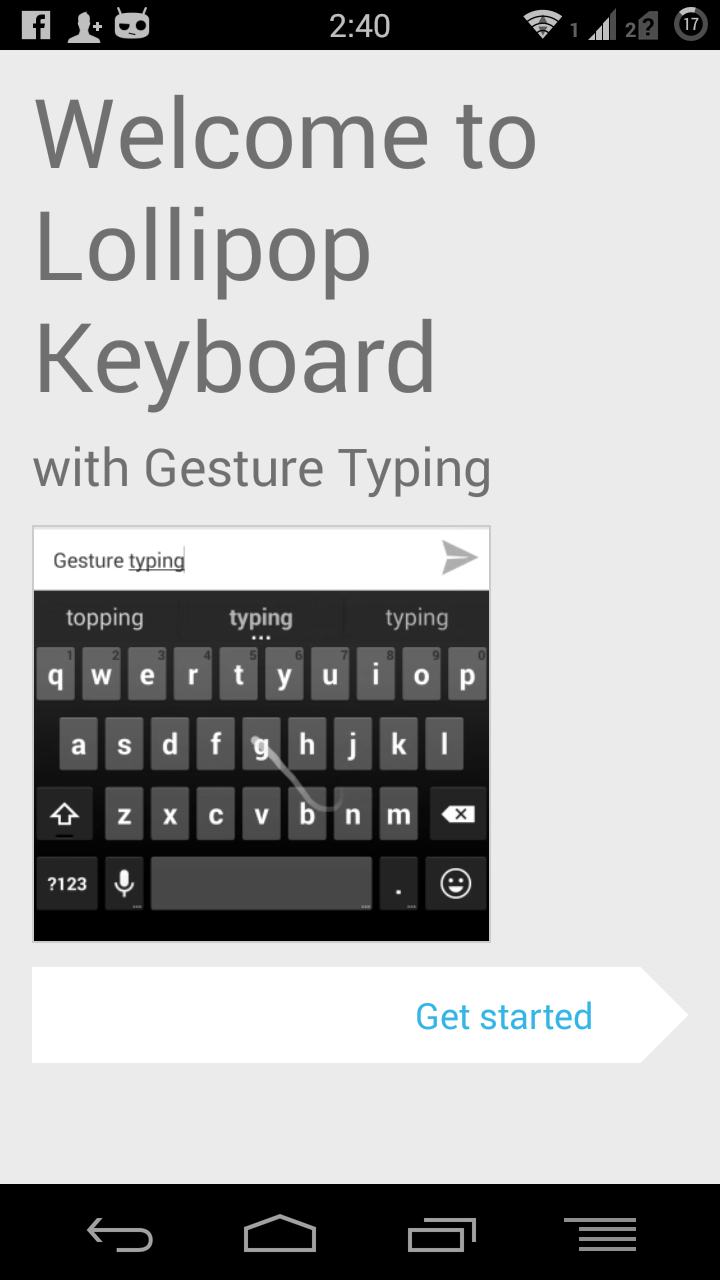
In the next screen click on the Get Started soft button.
Then click on the Enable in Settings, which will automatically enable the Android Lollipop Keyboard in the input settings.

Open_App Select_Enable
[Open the keyboard after installation]


STEP 3:
---------
In the next page click on the Switch input methods radio button.
This will ask you to Choose the input methods.
Select the Lollipop Keyboard here.

Switch_input_method Select_Lollipop_keyboard
[Select Lollipop keyboard in the input method]


Customizing the keyboard layout:

This step is really not required to work with the latest installed keyboard but if you want the Lollipop kyboard look then you should proceed for this.

STEP 1:
---------
Go to Settings > Language & input
You will see here the Lollipop keyboard is already enabled and set as the default keyboard.

Select the settings beside the Lollipop keyboard as shown in the below image.

Settings_language_input language_input
[Go to settings and Language and input section]


STEP 2:
---------
Now select on Apeearance & layouts > Themes

appearance_and_layout themes
[Select Lollipop keyboard in the input method]


You can see the below options in the theme that you can choose.

You can select here on the Material Light theme or anything else to get the desired look.

Lollipop_Keyboard_themes
[Select Lollipop keyboard in the input method]


[Android Lollipop Keyboard Installation guide]


Stay tuned to get more of such updates.
Skype Qik: Free Video messenger

Skype Qik: Free Video messenger

The advancement of open source in software technology has led to have more affordable smartphones in the market.
The smartness in the smartphones is due to the under lying mobile operating system like Androis, iOS, Windows phone OS, Firefox OS, Tizen OS and many more.
Because od these smartphones the way of communication has really evolved extensively.
Now a days nobody is using SMS because WhatsApp and like application has replaced the stuff.
We can now share not only text messages but also video contents and images almost at free of cost.

Similar to all of the other messenger applications Skype has launched it's latest Skype Qik application that shares video messages free of cost.
As in other applications you just have to register your phone number and Qik will send your video messages instantly over your existing internet connection.
Probably this will replace the text messaging completely in future.
You can create a group of users and share all your videos throughout the day.

Skype_Qik
[Skype Qik video messenger]

Description of Skype Qik from Google Play Store:

Introducing Skype Qik (say "quick"), a free* video messenger made for capturing moments and sharing laughs throughout your day.
Set up a group and immediately start shooting and swapping videos.
Send something to crack your friends up, or show off a new dance move-whatever you want.
New messages are added to a chat that you can watch like a movie with a single tap.
Qik even lets you erase your video right out of the chat.**

Don't just send just text or photos.
Go full-video with Qik.


What can you do with Qik?

  • Create groups in a flash: grab a bunch of friends from your phone's address book and start a private chat.
  • Pre-record and send video clips (Qik Fliks): can't respond right away? Thumbs-ups, smileys and more, starring you.
  • Erase your message and it disappears from the conversation.**
  • Keep it fresh-messages are automatically erased from Qik after two weeks.
  • Start a conversation any time-no login, usernames, or passwords needed.


  • * Mobile data rates may apply.. We recommend using an unlimited data plan or WiFi connection.
    ** It may be possible for recipients to capture and save videos elsewhere before you delete them from Qik.

    I have personally used this application on my Moto G and Nexus 4, on which it really works very fine and stole my heart.


    Skype is known from so long for it's video conferencing over internet.
    Even facebook is using skype for it's video chatting.

    You can do even more with this application.
    You just have to open up yourself to adapt new applications in the market, that's all.

    Below are the download links for different OS platforms:
    Skype Qik download link for iPhone
    Skype Qik download link for Android
    Skype Qik download link for Windows Phone


    Cheers.
    Have fun and stay tuned to get more updates and more such guides.
    [ROOTED ONLY] [HOW TO] Record screen movement in Android devices

    [ROOTED ONLY] [HOW TO] Record screen movement in Android devices

    SCR Screen Recorder allows you to record great quality screencasts directly from your phone or tablet.
    It uses hardware accelerated video encoding to achieve best quality screen recording on any device.
    There may be so many applications around the globe but this one is really one piece.

    As per the developer:

    It's the only video recorder in the market supporting Tegra devices including Nexus 7.


    SCR_Screen_Recorder
    [SCR Screen Recorder]

    I have personally used this application on my Moto G and it really works very fine and stole my heart and made me write this one for you.

    Here is the download link for the free version of this application on Google Play Store.
    SCR screen recorder FREE

    NOTE:
    This application is only for ROOTED devices.
    If you have not yet ROOTED your device then definitely this will not work for you.


    Download the application and install it to get started.
    When you will open this application it will bring you a small widget like stuff in the middle of your screen.
    You can hold it and move it to any place on your screen though.
    See the below image to get a glance:

    SCR_at_a_Glance
    [SCR in the middle of the screen]

    The first option is to start recording.
    Second is for SCR application settings.
    Third one is to exit SCR application.

    So to get started just press the first soft button and see how it records your movements on your Android device.
    To stop the recording you can lock your screen for at least two seconds or you can open the application itself and press the exit soft button.


    I hope that's all I wanted to show you.
    If you have some concerns regarding this application then you can have a look on the application thread on xda forum.
    SCR thread on XDA forum

    Cheers. Have fun and stay tuned to get more updates and more such guides.
    [HOW TO] Download Android applications from Google Play Store to your PC

    [HOW TO] Download Android applications from Google Play Store to your PC

    You all may know that Android phones are very much popular everywhere.
    As Android phones are popular of course there are lots of Android apps available around.
    But all the android applications are available only through Google Play Store and you are not allowed to download the applications.

    Let's say if you format your phone for some reason then you have to download all the applications again from the Play Store, isn't it???

    You may ask here, So what???
    What's wrong in downloading again???

    Well, I must say here, what if you can download the applications to your PC and use them again and again.
    So, you don't need internet connection after downloading once.
    Isn't that sounds cool???

    So below are the things you have to follow to get the Android Application (apk) files directly to your PC.
    The procedure requires to have a Google Chrome browser.
    I am pretty sure that you all have some browsers installed on your PC, because a browser is the gateway to enter into the world of internet.
    If you don't have a Google Chrome browser then you have to download that.


    Downloading Android Applications from Google Play Store:

    Open the Extension window on your Google chrome browser.

    Open_Google_Extension
    [Open the Extension window on Google Chrome]


    Click on get more Extensions.

    Click_on_Extensions
    [Click on get more extensions]


    Search for the "apk downloader" extension.
    Click on free.
    Click on Add when asked for the extension confirmation.

    Search_apk_downloader
    [Search APK downloader extension]


    Now open the Google play store.
    Search any application on Google Play Store.
    you will find a new option added as "Download APK"

    doownload_play_store
    [Download APK option on Google play store]


    It will ask you for your registered gmail account on google play store and the password.
    After that there is a field for the device ID which you will get in your phone status.
    Fill the details and cheers.

    NOTE:
    To get the Device ID, download the Device ID application from Google Play Store.
    Device ID application on Google Play Store.

    GSF_ID_on_Device_ID_App
    [GSF ID is what you need]


    If you are unable to login using your gmail credentials then you should go to the following link and enable less secure applications.
    Gmail less secure credentials page

    less_secure_gmail_credentials
    [Enable less secure applications]


    After successfully setting up everything you are done.
    Cheers. Have fun and stay tuned to get more updates and more such guides.

    [HOW TO GUIDE] How to create a local wifi network without using any wireless router

    Most of us are using smart phones now a days. Similarly many of us have PCs or laptops too.
    Sometimes we do have resources but we really don't know how to use them efficiently.
    Here in this tutorial I will explain how you can manage to create a local area network or home network without any help of wireless routers.

    I will introduce you with some of the applications that will run on your PC or laptop and create a wireless network for you.
    After completing this tutorial you will be able to connect all your wireless devices to each other and even share files, internet connection on your PC or laptop with the connected devices.


    Wifi_hotspot


    NOTE:
    You need to have a wireless device embedded to your laptop or PC which you want to turn into a wireless network hub.

    Now a days each and every laptop comes with inbuilt wifi device and even some of the PCs also have wireless card connected internally.
    Now there are some applications available out there which will use the available wireless device on your machine and will turn your machine into a wireless network hub.


    [Wireless hotspot demo]


    Following are the applications that I am going to use to create a wireless network:
    - Virtual Router
    - mHotspot download link
    - Connectify


    Below are the direct download links for each of them:
    - Virtual Router download link
    - mHotspot
    - Connectify download link


    Out of the three applications I will suggest you to go for the Virtual Router, because it's completely free as it is an open source application.
    Of course there is no such restrictions, you can download all of them and see which one you like the most and you can continue with that.

    So go ahead, download the application and install it first.
    I will take the video from mHotspot to show you how to setup the wireless and network and more or less the same procedure will be applicable to the other applications too.

    Here is a video tutorial that shows How to create a wireless hotspot:


    [How to setup a wireless network with mHotspot]

    How to backup all of your data on your Android device, step by step guide

    Definitely most of us are using smart phones now a days and even most of us are using Android devices.
    In our phone we have so many personal data, contacts, important files and many more.
    Sometimes you get updates for your device, or you may want to restore it to factory settings, or sometimes you may want to upgrade your device to a custom ROM like Cyanogenmod or something else then definitely you will not wish to lose your data at once right.

    So here I have an application to introduce you with which will help you to take the backup of your data.
    Make sure you have at least half an hour of time to set it up and understand properly what it can do for you.
    This application works on Windows and Linux systems only as far as I know.

    NOTE:
    This data backup process is only meant for Android devices.
    To take backup of your data you need to have a Windows or a Linux machine.
    You need to have connectivity to the computer in the either of the following mentioned ways:
    - Wi-Fi
    - Bluetooth
    - USB data cable

    How to install the application:


    Download the MyPhoneExplorer application for Windows OS from the link provided below:
    MyPhoneExplorer application download link

    After downloading the application please follow the below steps to install the application:

    STEP 1:
    ---------
    Double click on the downloaded file and agree to the license agreement. Click on I Agree to proceed.

    License_Agreement

    [Accept the license agrrement of the software]


    STEP 2:
    ---------
    Click on Next and be informed that NOT TO click on the portable installation check box.

    Click_on_NEXT

    [Click on Next]


    STEP 3:
    ---------
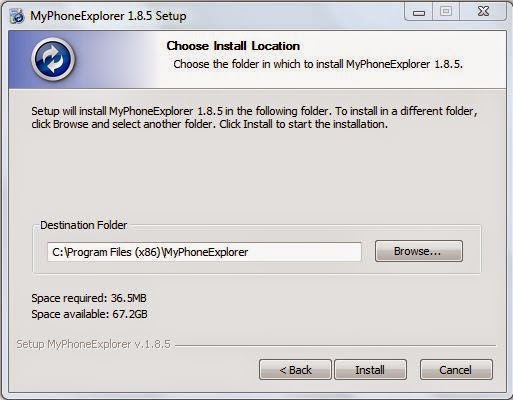
    Select where you want to keep the application files.
    Better not to change anything and just click on Install.

    Click_on_Install

    [Click on Install to start installation]


    How to synchronise your phone with the PC:


    Download and Install the MyPhoneExplorer Client application for your Android device from the link provided:
    MyPhoneExplorer Client download link on Play Store

    NOTE:
    Make sure you run the Client application on your phone before you run the application on your PC and your phone is connected to your PC.
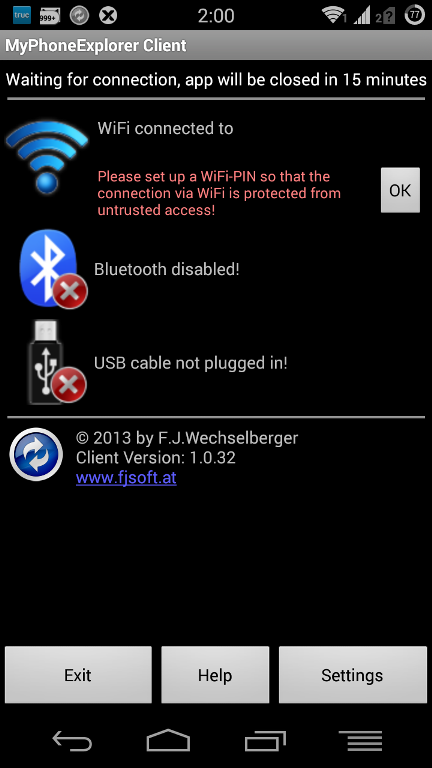
    I have connected my device to my PC via Wi-Fi connection so It shows that it is "WiFi connected to".

    Andro_Client_App

    [MyPhoneExplorer Client app on my Android phone]

    STEP 1:
    ---------
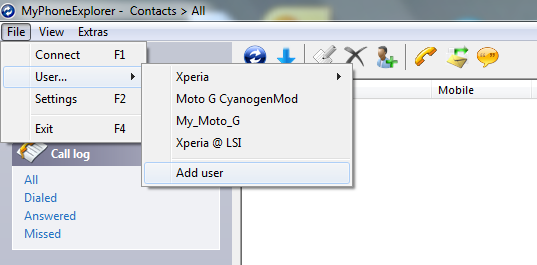
    Open File > User > Add user.

    Add_User

    [Add a user on the application]


    STEP 2:
    ---------
    In the next dialog box that pops up select "Phone with Google Android-OS"
    And select the mode of communication for the "Connect via..." section.
    As I am connecting my phone to my PC I am selecting WiFi.

    Select_Communication

    [Select the communication type between your PC and your phone]


    Before connecting you have to do one more thing.
    Go to File > Settings and then Go to the Advanced 1 TAB and select the "Use X to minimize instead of closing MyPhoneExplorer" check box.

    This will now close your application when you will click the close button on your right side.
    Because if your application is closed then the connection to your device will also be lost.

    Extra_Setup

    [Extra setup]

    STEP 3:
    ---------
    Click on the Synchronise button to start the connection.

    Start_Synchronisation

    [Start synchronisation]


    How to take backup of your phone data:

    STEP 4:
    ---------
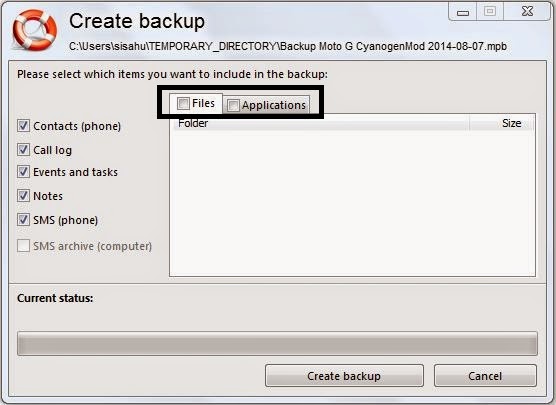
    After synchronization has been completed you can now take a backup of all your contacts, calendar data, messages and your files and even the applications installed.

    Go to the following path on the application as shown in the below image.

    Select_backup

    [Backup your data]

    You can select the Files and then select a folder where to keep the files on your local computer.
    Similarly you can select applications and then select a folder on your local machine where you want to keep the Android application files.

    Backup_Files

    [Backup your files and application data]

    Now you sit back relaxed till the application takes all the backup of all your phone data.

    Have fun and stay tuned to get more updates.

    How to set any song of your choice as a ringtone other than the pre loaded ringtones on an Android phone

    How to set any song of your choice as a ringtone other than the pre loaded ringtones on an Android phone

    Android phone comes with so many preloaded ringtones.
    Of course setting ringtones is quite easy on any Android phone:
    You simply open Settings, select Sound and then select Phone Ringtone and add one from the list.

    But what if you want to choose an MP3 file stored on your phone memory or on your SD card as your phone ringtone ???
    Here I will explain two ways to achieve this easily.

    NOTE:
    Both the way that I am going to represent, require a file manager application.
    By default file managers come already installed on devices.

    But still I recommend a free file manager application to be installed by you if you are not comfortable with the installed file manager application:
    File manager App from Play Store


    The easiest process:


    STEP 1:
    ---------
    Open Settings, select Sound and then select Phone Ringtone

    Ringtone_settings

    [Goto Settings, Sound, Phone Ringtone]


    STEP 2:
    ---------
    Select the File Manager application

    Open_App

    [Select the File Manager application]


    STEP 3:
    ---------
    Go to the MP3 file where it resides in your phone memory or in your SD card memory and slect the file.

    After this step you can see that your Ringtone is set to the MP3 file that you had selected.

    Select_MP3

    [Select the MP3 for Ringtone]


    Second process:


    STEP 1:
    ---------
    Open the file manager.

    Open_FileManager

    [Open the File Manager application]


    STEP 2:
    ---------
    Create a folder in the name of Ringtones inside the sdcard or phone memory.

    Create_folder Create_folder Create_folder

    [Create a new Folder and name it as Ringtones]


    STEP 3:
    ---------
    Go to the MP3 file where it resides in your phone memory or in your SD card memory.

    Select_MP3

    [Browse the MP3]


    STEP 4:
    ---------
    Then copy the MP3 file and paste it in the Ringtones folder you had created in the second step.

    Copy_file Paste_file

    [Copy and paste the MP3]


    STEP 5:
    ---------
    Open Settings, select Sound and then select Phone Ringtone and search the ringtone that you have kept with it's file name and select that from the list.

    MP3_as_Ringtone

    [Your MP3 under Ringtones]


    I believe the first step is quite easy than the second step.


    How to seek your music to a desired time on your lock screen

    How to seek your music to a desired time on your lock screen

    If you have an android device with KitKat version then the following trick will be applicable to you.
    This trick applies to the Apollo music player bundled in CyanogenMod custom ROMs.
    I have not yet tested this one with any other version of Android or CyanogenMod versions.

    In the Android KitKat version Google has replaced the stock android player with the Google music player.
    When you are on your lock screen while listening to music, then the lock screen will be looking quite as the following.

    android_tips

    [Music player interface on your Android device]

    The lock screen music interface gives you, previous, play or pause, next, and the track name.
    The timing bar of the track is missing, so you cannot seek the music to forward or backward while stayong on your lock screen.
    If you want to seek the music to a forward or backward time of the track then you have to unlock the phone and open the music app and seek the time.

    But that is not true completely.
    This trick shows how to seek the music bar at your lock screen itself.


    When you are on the lock screen while your music is playing or even stopped, then there may have play/pause music soft button respectively in between the previous and next soft buttons.
    Now press and hold the play/pause soft button for a while and you will see the seek bar.

    That's all... Keep rocking with InfySim.

    android_tips

    [Music seek bar on your Android lock screen]